
Welcome to the Onepay Learning Center | Blogs
The Basics Guide
Initial onetime setup fee
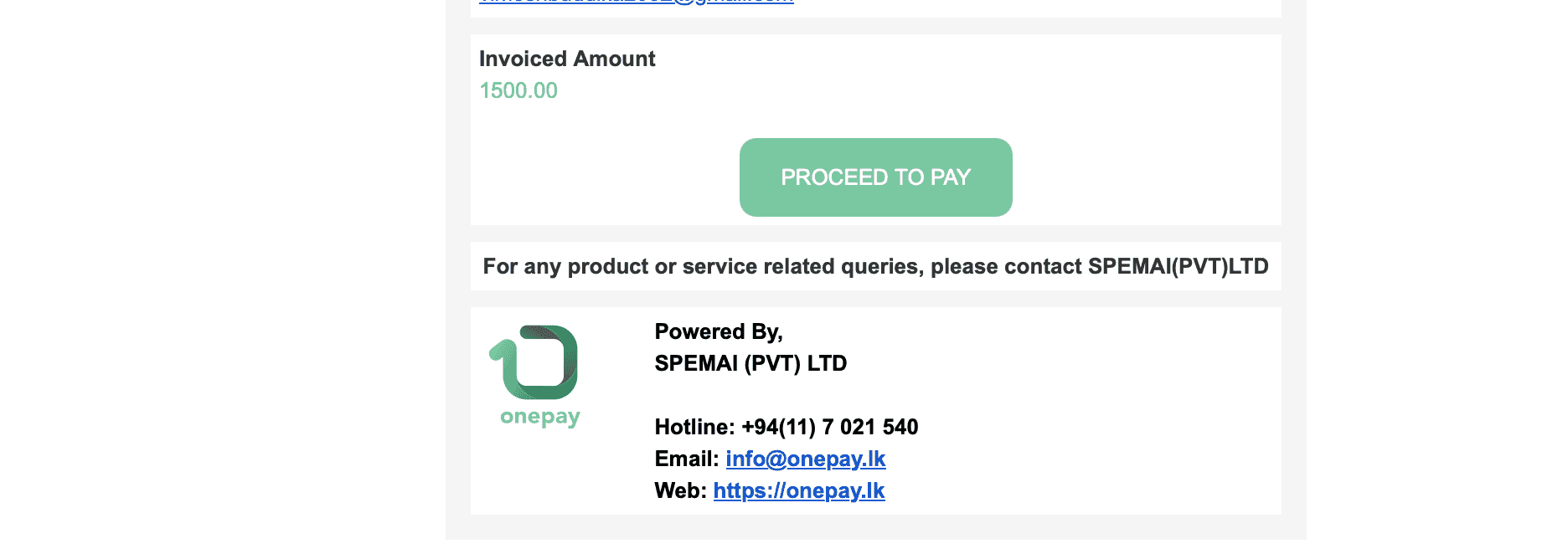
Click the Proceed to Pay button to pay the one-time setup fee of LKR 1500. Your portal will be activated for integration once the payment is completed. . Once you make the payment, you will receive a confirmation email. To download a PDF receipt, please access https://app.oneid.ink/login
Password reset
You would have received an email from noreply@onepay.lk to change the password. Please check your spam folder if you cannot find it in your inbox.
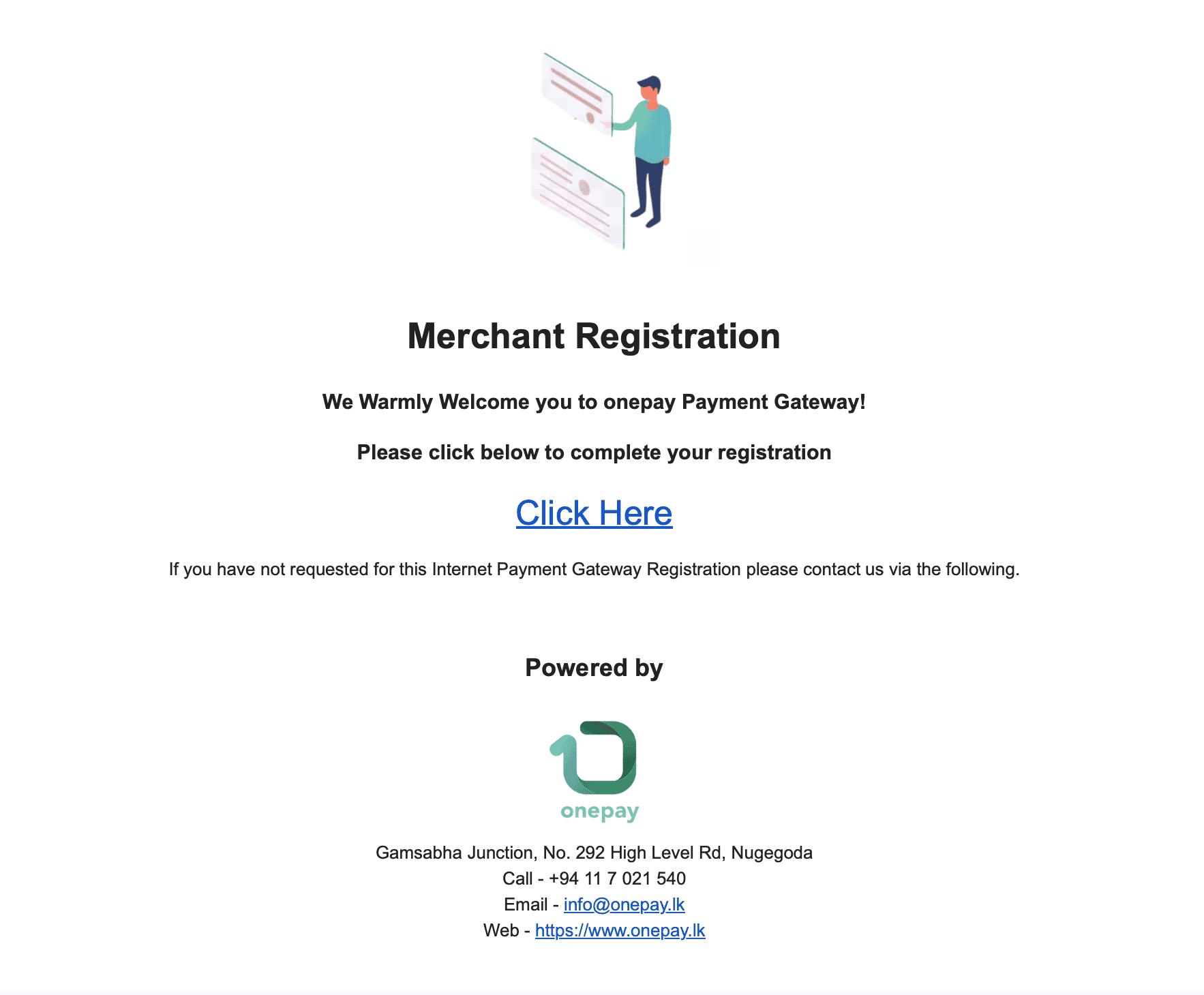
Click the "Click here" button to enter your first-time password reset.
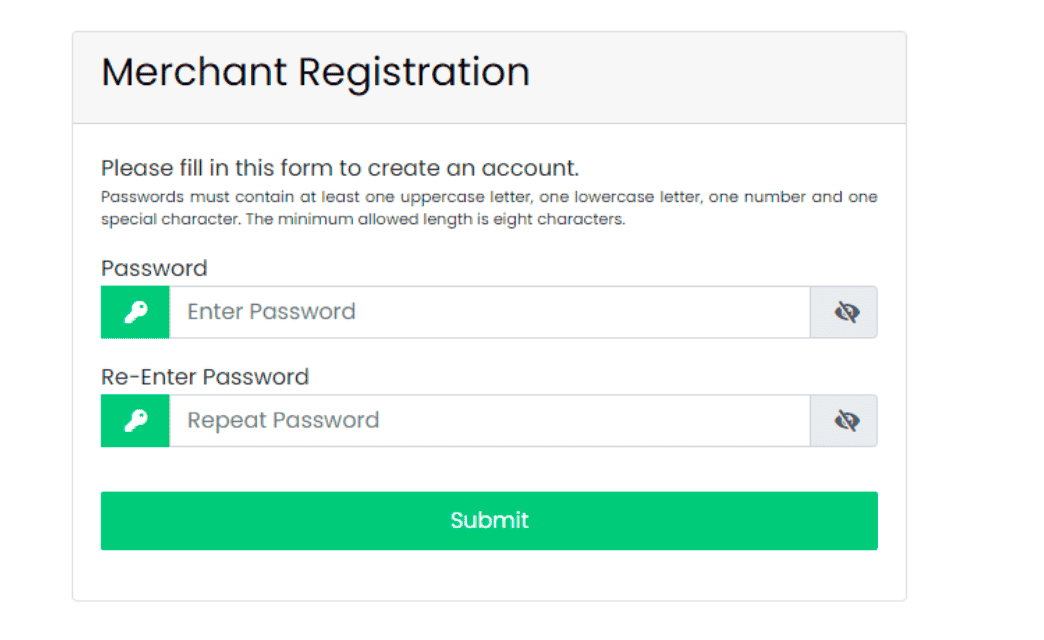
You will see this window where you can set up your new password. Please follow the password requirements shown in the tips below.
Onepay Merchant Portal Configuration
Login to the Onepay website to access the merchant portal for one-time configuration to enable payment acceptance and package updates.
Visit https://www.onepay.lk/
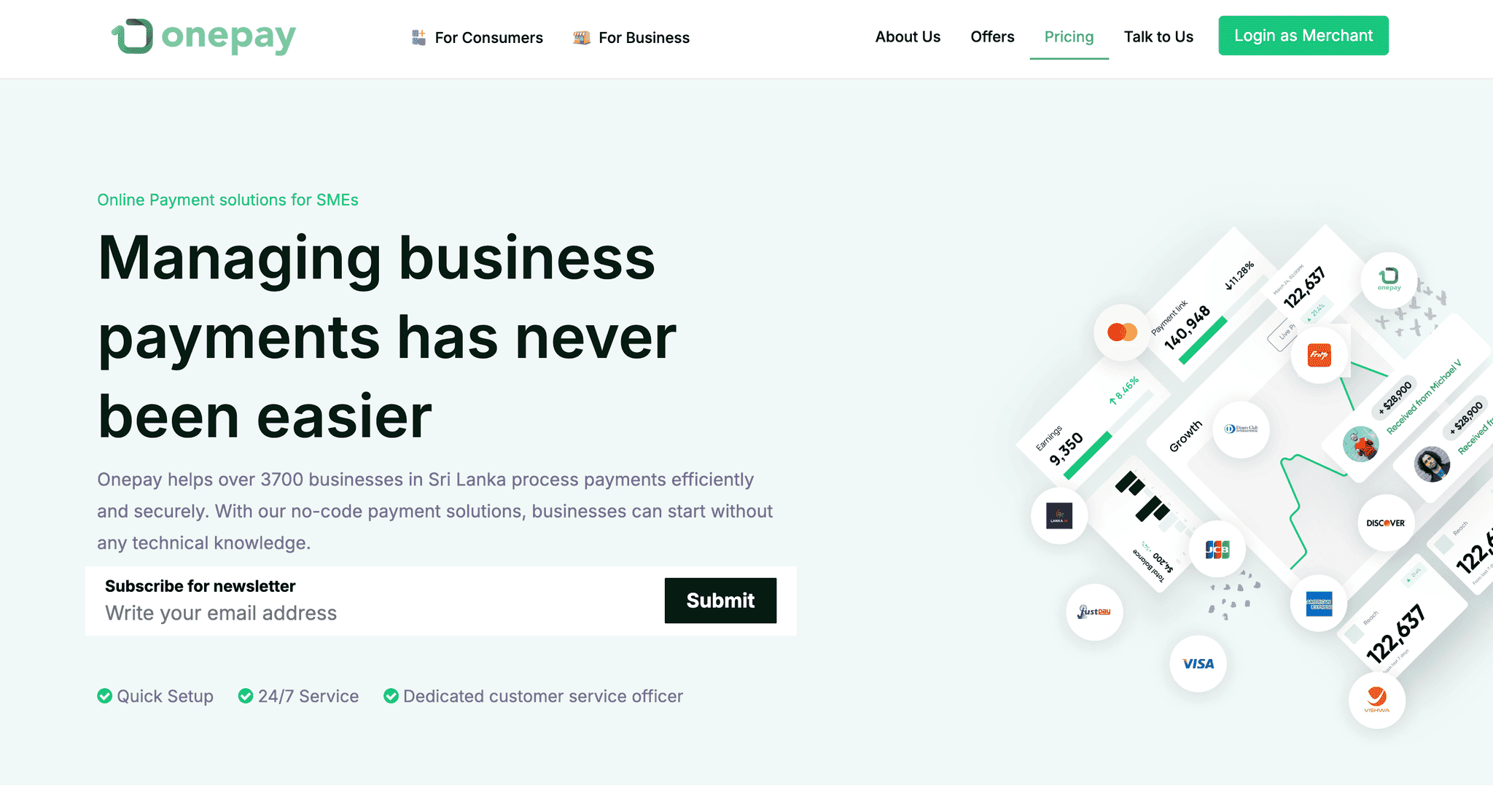
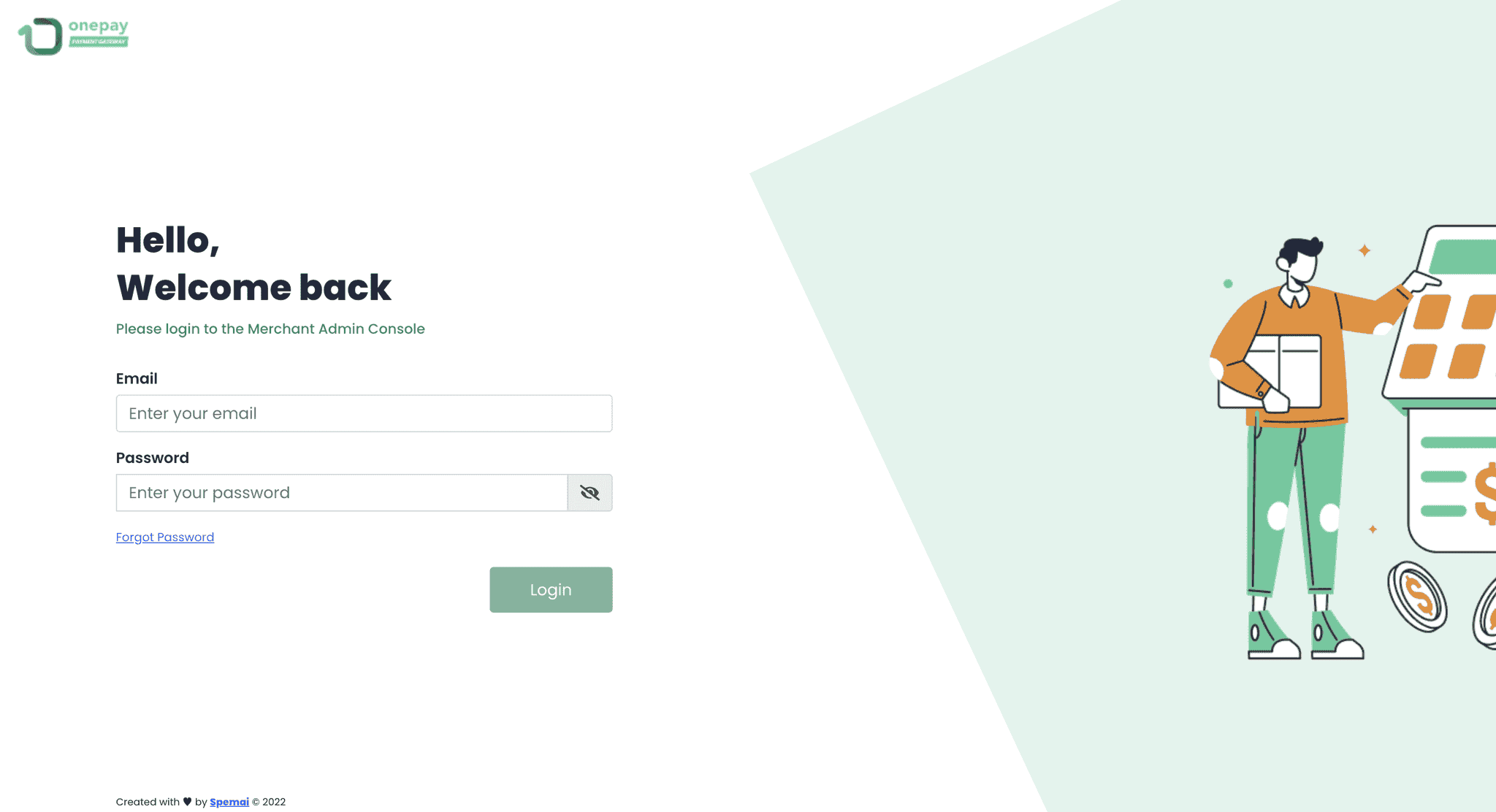
Click "login as a merchant" in the right corner of the onepay website and you will open a new popup with following URL https://merchant.onepay.lk/authentication/login for the portal login.
Enter your registered email address and password to login to the portal for the configuration
Onepay Developer Configurations (Sandbox Create)
In the sidebar, navigate to "Developer Configurations" and select "IPG Apps"
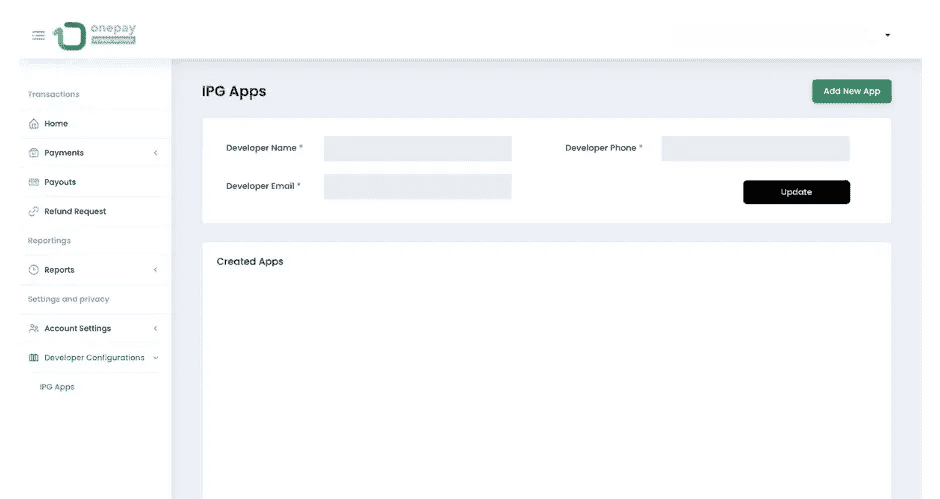
Click the "Update" button after entering your developer name, phone number, and email address to begin the configuration process.
Click the green "Add New App" button located on the right side of the view
A popup window will appear where you need to enter the following required information:
App Name*: Your business name
Status Callback Configuration: Add your callback URL to capture transaction response data. This should be a GET request that processes a JSON file. For more information, please check our API documentation: https://developer.onepay.lk/#introduction
For additional security, you may also configure a callback token.
Click the "Add" button. After submitting the initial information.
Developer Testing
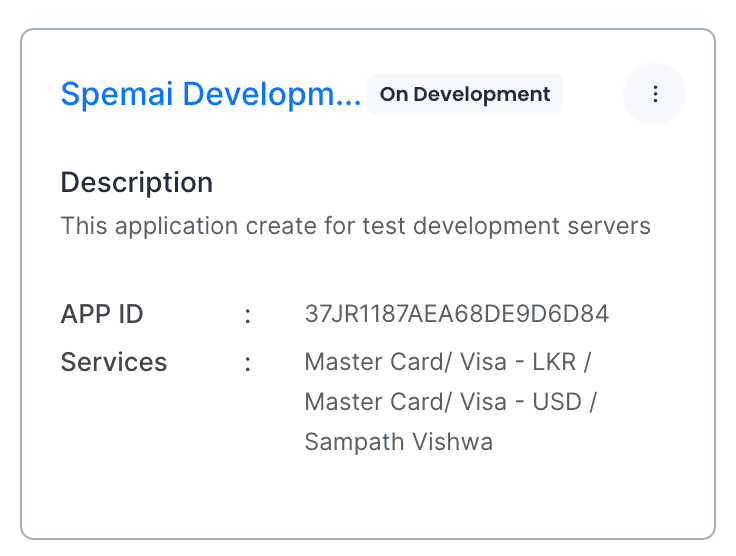
Now you can see your developed app below. Click on it to view the app details for testing.
URL: https://merchant.onepay.lk/pages/developer-configurations/ipg-apps Click the three-dot menu icon to view the developer configuration details.
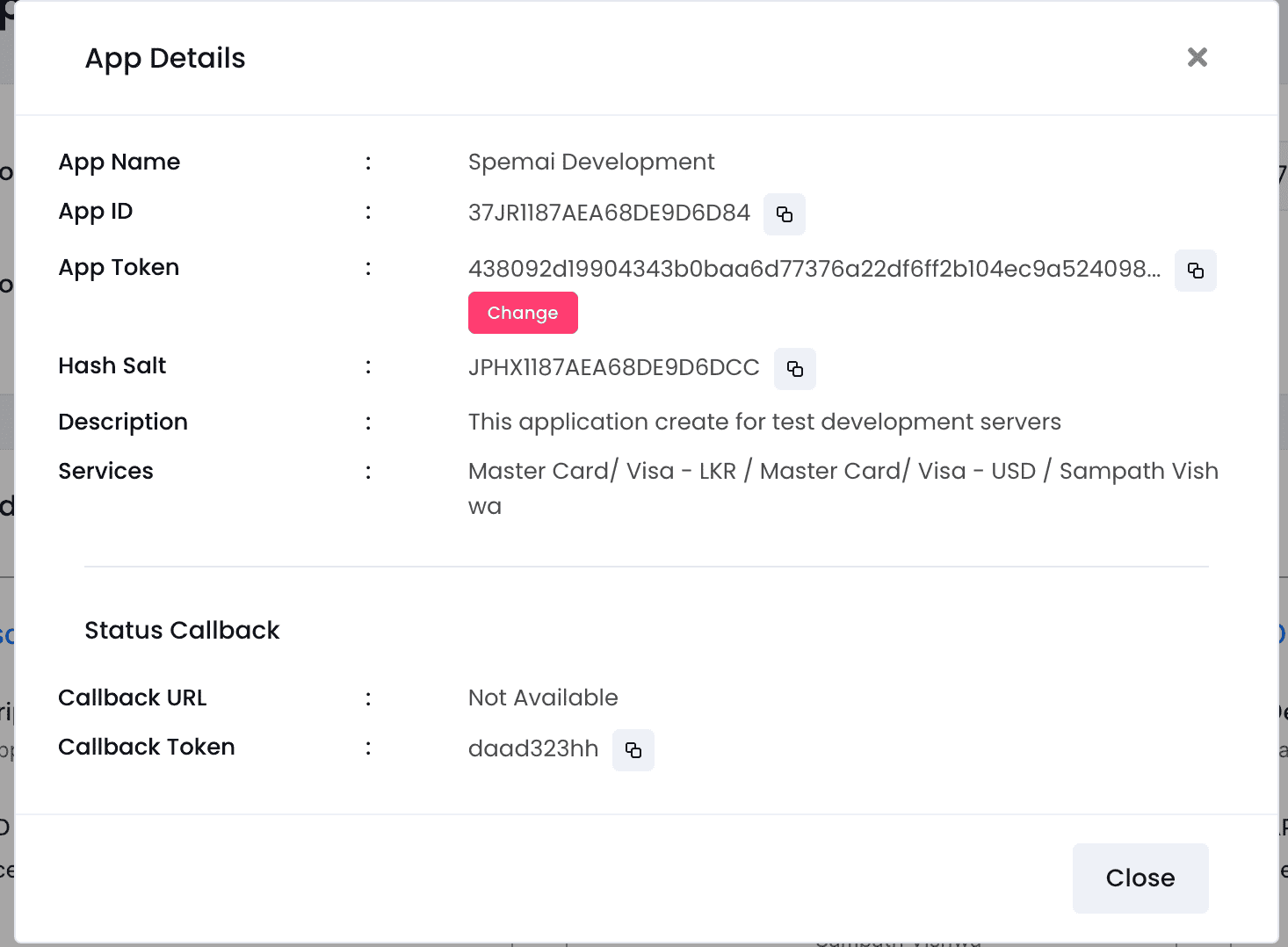
Now you can see the developer details needed to connect with your platform. Copy the APP ID, App Token, and Hash salt to properly connect Onepay with your platform. This requires technical expertise to implement, so please share our API documentation and configuration files with your technical team.
Click here
Request to Go Live (Sandbox Mode to Live Mode)
Request to Go Live (Sandbox Mode to Live Mode)
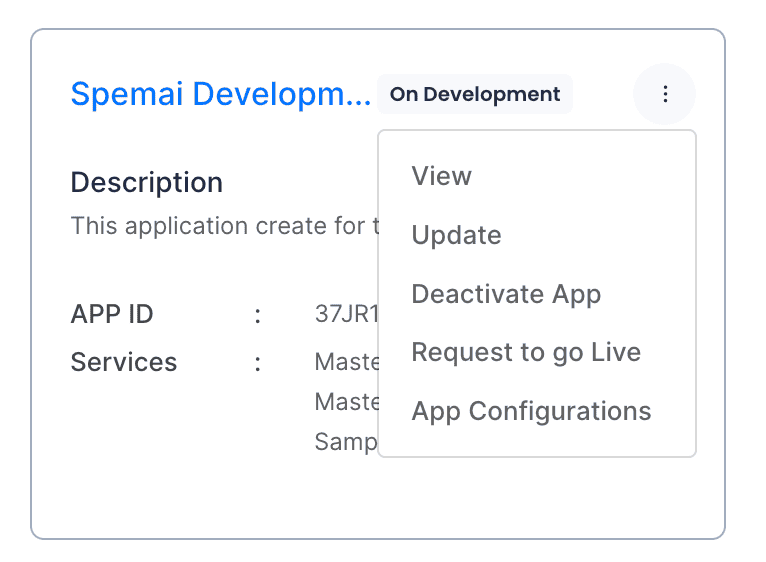
Once you have completed the integration and testing, you can request to go live. Click the three-dot menu icon to view the developer configuration details, then click "Request to Go Live"
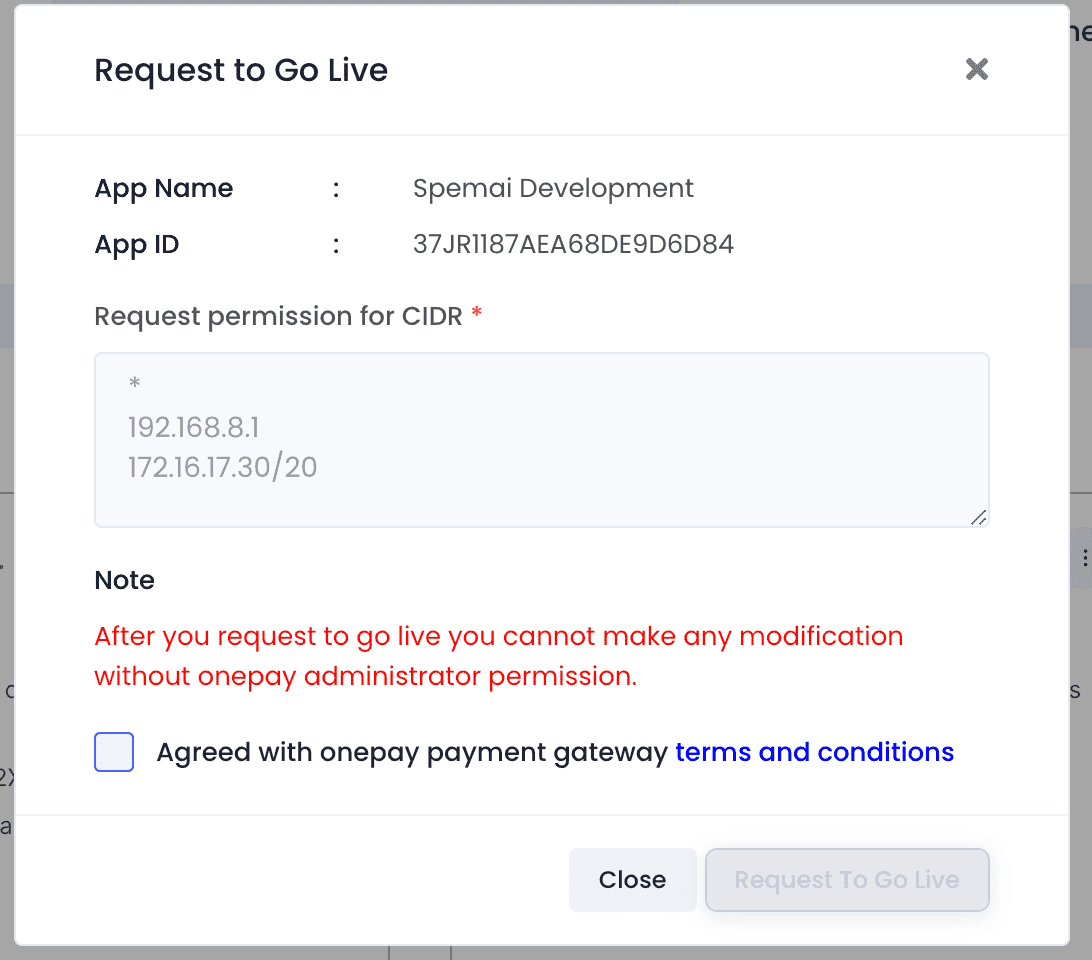
Click the star (*) symbol in the box below to verify the CAPTCHA, check the terms and conditions checkbox, and click the "Request to Go Live" button. Review our Terms and Conditions: https://www.onepay.lk/agreement.html (v2.2)
Contact us if you need additional support or have suggestions for improvement. Your valuable feedback helps us enhance our services.